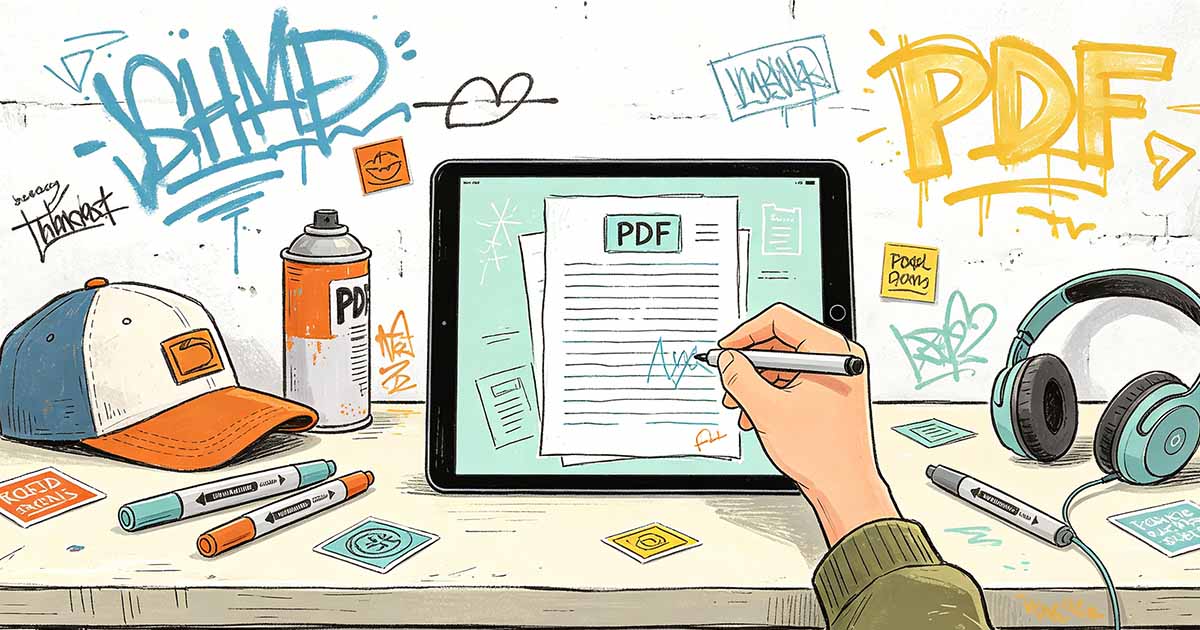
A finger-drawn signature on a tablet screen looks like a child's scribble. The lines are thick, wobbly, and lack the natural variation in pressure that makes a pen-on-paper signature distinctive. A stylus changes this entirely. The narrow tip provides precision. Pressure sensitivity captures the subtle variations in line weight that characterize a natural signature. Signing a PDF with a touchscreen stylus produces a digital signature image that is nearly indistinguishable from a scanned pen-and-ink original. The Sign PDF process with a stylus combines the convenience of digital signing with the visual authenticity of a physical signature.
Choosing the Right Stylus for PDF Signing
Not all styluses are equal for signature purposes. A basic capacitive stylus, the type with a soft rubber tip, works on any touchscreen but produces uniform thick lines without pressure sensitivity. An active stylus, such as the Apple Pencil for iPad or the Samsung S Pen for Galaxy devices, communicates with the screen digitizer to provide pressure sensitivity and palm rejection. When you press harder, the line becomes thicker. When you press lightly, the line becomes thinner. This pressure variation is what gives a stylus signature its natural appearance.
For occasional PDF signing, a basic capacitive stylus is sufficient. The signature will look acceptable, if not artistic. For regular professional use, where the signature represents your identity on contracts, agreements, and official documents, invest in an active stylus compatible with your device. The difference in signature quality is immediately visible when you place a capacitive stylus signature next to an active stylus signature. The Digital Signature image from an active stylus carries the visual weight of a real signature.

Signing a PDF With Apple Pencil on iPad
Open the PDF in a signing-capable app on the iPad. Apple Markup, built into the Files app and the Mail app, supports Apple Pencil input with pressure sensitivity. Tap the Markup icon and select the pen tool. Choose a pen thickness and color, typically black or dark blue for a professional signature. Sign your name on the signature line. The Apple Pencil captures the pressure variations and tilt angle, producing a signature with natural line weight variation.
After signing, use the Markup selection tool to resize and reposition the signature if needed. Save the signed PDF. The signature is embedded as an annotation in the PDF. For a more formal signature, use a dedicated PDF signing app such as Adobe Acrobat Reader or PDF Expert, which places the signature as a stamp or a signature field rather than as a freeform annotation. WukongPDF supports Sign PDF workflows on tablets and mobile devices.
Signing a PDF With Samsung S Pen on Android
Samsung Galaxy tablets and phones include the S Pen, an active stylus with pressure sensitivity. Open the PDF in Samsung Notes or a PDF signing app. Select the pen tool and adjust the thickness and color. Sign the document on the signature line. The S Pen pressure sensitivity captures the natural variation in line weight. After signing, save the document. The signed PDF can be shared directly from the app.
For devices without a built-in stylus, an aftermarket active stylus such as the Adonit or Wacom Bamboo provides similar pressure-sensitive input. Install the stylus companion app if one is available to calibrate the pressure curve and button functions. The Sign PDF result depends on the stylus quality and the app support for pressure sensitivity.
Creating a Reusable Signature Stamp
After signing with a stylus once, save the signature as an image that can be reused for future documents. On iPad, use the Markup tool to create a signature and save it to the signature library. The saved signature is available in any app that uses the Apple Markup system. On Android, save the signature as a PNG image with a transparent background. Import the signature image into the PDF signing app signature library.
A reusable signature stamp saves time for frequent signers. The quality of the initial signature capture determines the quality of every subsequent use. Take the time to create a clean, well-proportioned signature on the first attempt. Zoom in on the signature after saving and check for any jagged edges or uneven lines. A signature stamp that looks rushed will look rushed on every document it is applied to.
A stylus-signature on a PDF combines the legal standing of an electronic signature with the visual authenticity of a physical signature. The technology has advanced to the point where a skilled stylus user can produce a digital signature that is indistinguishable from ink on paper.
WukongPDF provides the tools needed for this workflow through a browser-based platform that works across all major operating systems and devices, making these operations accessible without installing desktop software.
The techniques described in this article can be implemented using a variety of PDF tools available on the market, from free browser-based services to professional desktop applications with advanced feature sets.
With the right approach and the appropriate tool configuration, what initially appears to be a complex document challenge becomes a straightforward process with predictable and repeatable results that meet professional standards.
The PDF format continues to evolve, and the tools available for working with PDFs improve with each generation. Staying informed about new capabilities and updated features ensures that document workflows remain efficient and take advantage of the latest technological advances.
Whether performing this operation for the first time or refining an established workflow, the principles and methods described in this article provide a clear and practical guide that readers can follow with confidence.
Investing time in understanding the available settings and testing them on sample documents before processing the full batch consistently produces better results than accepting the default configuration without consideration.
The ability to perform this PDF operation reliably is a valuable addition to any document workflow, saving significant time and producing professional results that reflect well on the individual and their organization.
Documenting the specific settings and workflow for each type of PDF task creates a reusable reference that saves time on future projects and ensures consistency when different team members perform the same operation.
The methods and approaches outlined in this article represent current best practices for handling this aspect of PDF document management across a wide range of use cases and scenarios.
With practice, these PDF operations become second nature, allowing document professionals to focus on content creation and analysis rather than wrestling with file format challenges and technical obstacles.
The practical steps outlined in this article guide the reader from the initial challenge through to a complete and verified solution, covering the key decisions and configuration choices that determine the quality of the final output.
As with many document operations, the quality of the result depends significantly on the care taken during the setup and configuration phase, as well as the thoroughness of the verification step before finalizing the document.
Readers who apply these techniques will find that tasks which once seemed complex and intimidating become straightforward and manageable with practice and the right tool configuration for the specific requirements of each job.
The investment in learning proper PDF handling techniques pays dividends across countless document tasks, making it one of the most practical and transferable skills in the modern digital workplace.
This article has covered the essential concepts and practical steps needed to handle this PDF task effectively, from initial setup and configuration through to final verification and distribution of the completed document.
The guidance provided in this article equips readers to handle this aspect of PDF work with competence and assurance in any professional context.
Mastering this PDF skill is an investment that continues to return value with every document processed and every workflow streamlined for greater efficiency.
This skill, once developed, becomes a permanent and valuable part of any document professional toolkit, applicable across industries and use cases.
The knowledge gained from this article applies across tools, platforms, and document types, making it universally useful for anyone who regularly works with PDF files in a professional or personal capacity.
The PDF format remains the standard for document exchange across industries and platforms worldwide. Mastering these techniques enhances both personal productivity and organizational document management capability.
These techniques have been tested across a wide range of document types and scenarios, ensuring that the guidance provided is both practical and reliable for real-world applications.
A solid understanding of these PDF operations empowers users to handle document challenges independently, reducing reliance on technical support and enabling faster turnaround on document-intensive projects.
A stylus-signed PDF combines the legal efficiency of digital signatures with the personal authenticity of a handwritten mark, representing the best of both approaches to document signing in the modern era.
The technology behind stylus-based digital signatures has matured to the point where the result is visually indistinguishable from traditional ink on paper, making it the preferred signing method for professionals who value both efficiency and presentation quality.
This makes stylus-based PDF signing the clear choice for anyone who values both digital efficiency and traditional signature aesthetics.
A stylus changes everything. The signature looks real. It feels real. It carries weight.
Pressure matters. Speed matters. A quick scribble looks like a quick scribble. A deliberate signature looks professional.