A client sends over a PDF they need updated — a proposal you wrote six months ago, a contract template they want revised, a report they need new data added to. You open it, try to click on the text, and nothing happens. The document is locked. They don't have the original file. You have a deadline. Here's how to handle it.
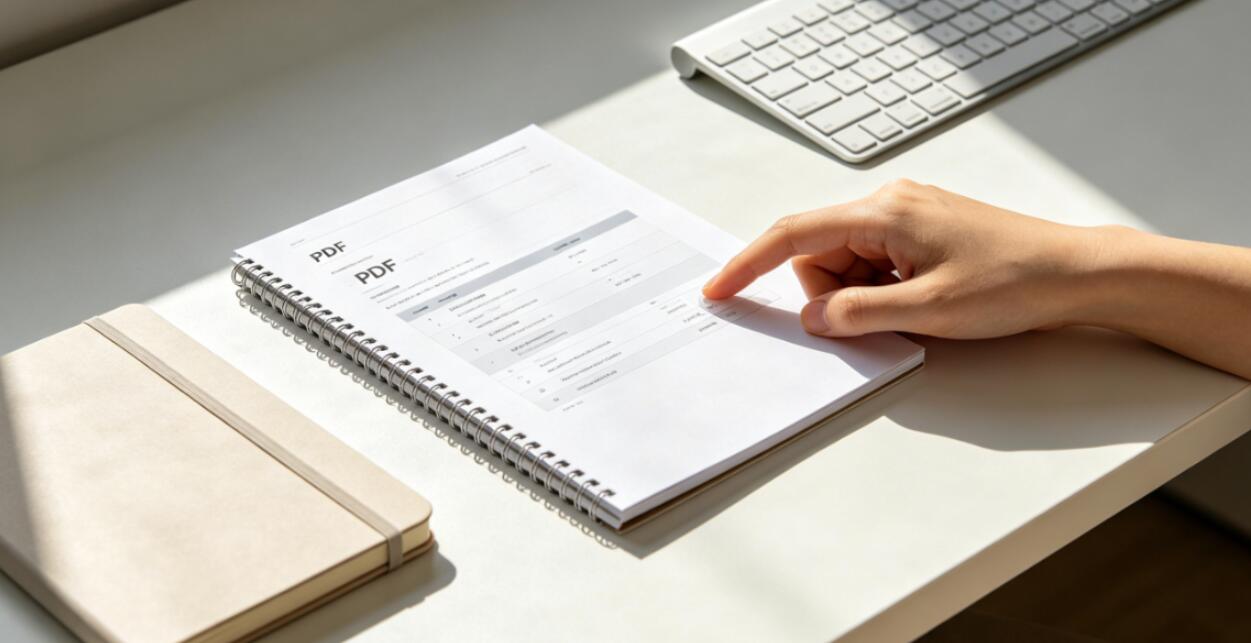
First, Understand Why It's Uneditable
Not all uneditable PDFs are the same situation, and the right approach depends on which one you're dealing with.
- It's a scanned document: the PDF is an image of a physical document. There's no selectable text — just pixels. Clicking anywhere does nothing useful.
- It has permissions restrictions: the PDF has real text but editing is disabled by a permissions password. You can read it but can't change anything.
- It's a standard PDF with no editing tools: there are no restrictions, you just don't have a PDF editor open. This is the easiest case — open it in an editor and you're done.
Quick test: try to click and drag to highlight a word. If you can select text, the document has real text and isn't restricted by a permissions lock — you just need the right tool. If nothing highlights, you're either dealing with a scan or a permissions-restricted file.

Option 1: Convert It to Word and Edit There
For text-based PDFs where the content is selectable, converting to Word is usually the cleanest path. You get a fully editable document, Word's familiar editing tools, the ability to use Track Changes for client review, and an easy route back to PDF once the edits are done.
The conversion won't always be pixel-perfect — fonts may substitute, some layout elements may shift — but for text-heavy documents like proposals, contracts, and reports, the output is clean enough to work with directly. WukongPDF's PDF to Word tool at www.wukongpdf.com handles the conversion without requiring any software installation.
Once you've made the changes in Word, export back to PDF before returning it to the client. They sent you a PDF; they probably expect a PDF back.
Option 2: Edit Directly in a PDF Editor
If the changes are minor — a date update, a name correction, swapping out a figure — converting to Word and back is more steps than the edit warrants. A PDF editor lets you click directly on text and change it without leaving the PDF format.
The limitation is that PDF editors work best for small, localized edits. Adding a paragraph, substantially restructuring content, or changing something that affects layout across multiple pages is awkward in a PDF editor compared to Word. Use it for targeted corrections; use Word conversion for anything that involves significant rewriting.
Option 3: Run OCR First If It's a Scanned Document
If the PDF is a scan — no selectable text anywhere in the document — you need to create text before you can edit it. OCR (Optical Character Recognition) reads the image and converts it into real, selectable text embedded in the PDF.
After OCR, the document has real text and can be converted to Word or edited in a PDF editor. The OCR output won't be perfect — accuracy depends on scan quality — so plan for a proofreading pass before the document goes back to the client. For anything with numbers, check every figure against the original scan.
Before Any of This: Ask for the Source File
It's worth asking the client whether they still have the original Word, Excel, or InDesign file before going through the PDF editing process. Many clients send PDFs out of habit without thinking about whether the editable version is still around. If they do have the source file, editing that and re-exporting is faster and produces a cleaner result than working through PDF conversion.
A quick "do you have the original editable file?" email takes thirty seconds and can save an hour of cleanup work. It's the first question to ask before opening any conversion tool.
Back to That Deadline
In order: ask for the source file first. If it's not available, check whether the text is selectable. If it is, convert to Word via WukongPDF's PDF to Word tool, make the edits, export back to PDF. If the text isn't selectable, run OCR first, then convert. The whole process — OCR, conversion, editing, re-export — takes fifteen to thirty minutes for a standard document. You'll make the deadline.